> For the complete documentation index, see [llms.txt](https://documentation.grax.com/llms.txt). Markdown versions of documentation pages are available by appending `.md` to page URLs; this page is available as [Markdown](https://documentation.grax.com/other/veeva/backup.md).
# Backup
With GRAX Backup, you're just a few clicks away from securely backing up your entire Veeva Vault CRM org.
## How does it work?
Once the integration user is connected, GRAX:
* Periodically describes all the objects and schema in your org and adds them to the Backup system.
* Starts periodic jobs that pick an object and back up everything new or changed since the last backup.
## Dashboard and Monitoring
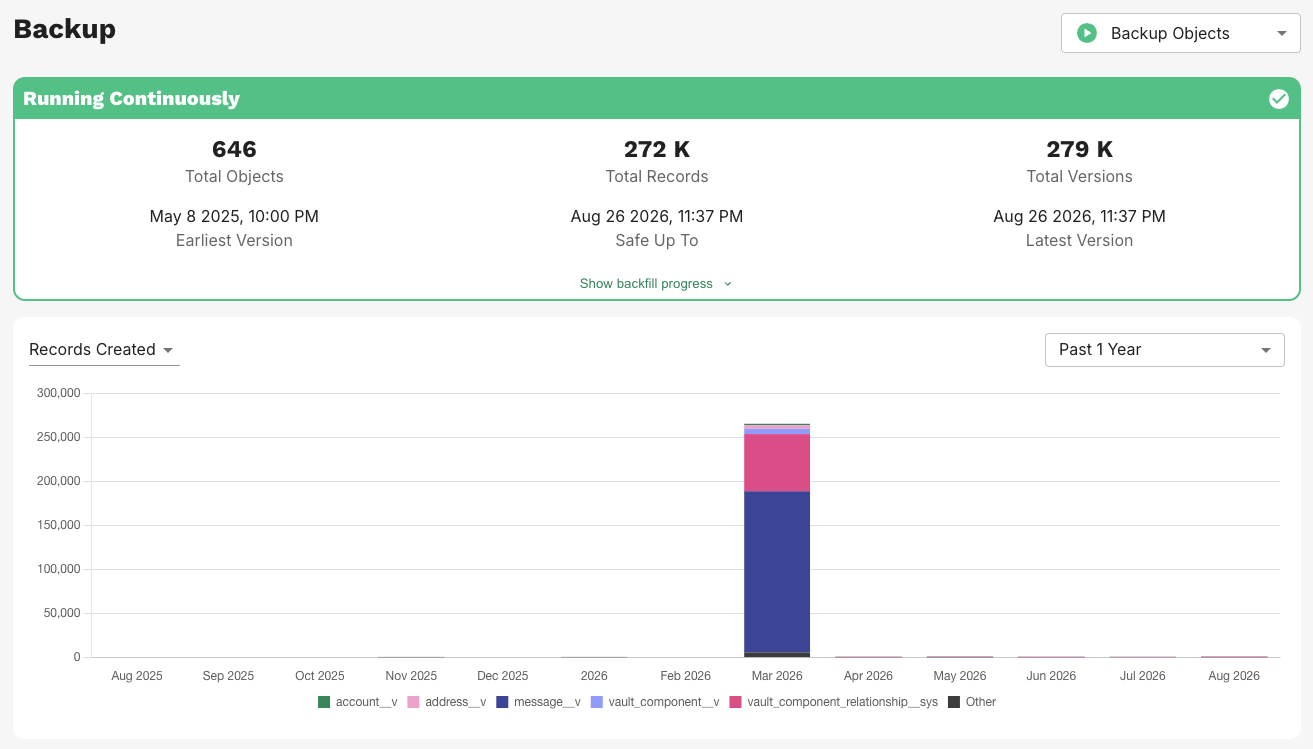
The Backup Dashboard in the GRAX Application serves as the central hub for tracking key metrics and statuses. It provides details into the total volume of data backed up, the time frames covered by secure backups, and the historical progress of Backup operations.
Healthy Backup Dashboard
### Backup Toggle
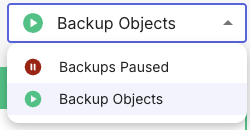
You can easily control Backup behavior with the following options:
* `Backup Objects`: Capture all available data objects
* `Backups Paused`: Disable all backup operations
Backup Mode Selector
### Backup Status
Additionally, the dashboard displays detailed status information, as outlined below:
* `Backfilling`: GRAX is backing up the history of your org, and at least one object has never been fully backed up
* `Behind`: All objects were fully backed up previously, but backup has since fallen behind for at least one object
* `Running Continuously`: GRAX is operating as expected and up to date on all objects within expected SLA
* `Paused`: Backup has been paused by a user for records, files, or both
* `Error`: An error has been encountered by the app while backing up data
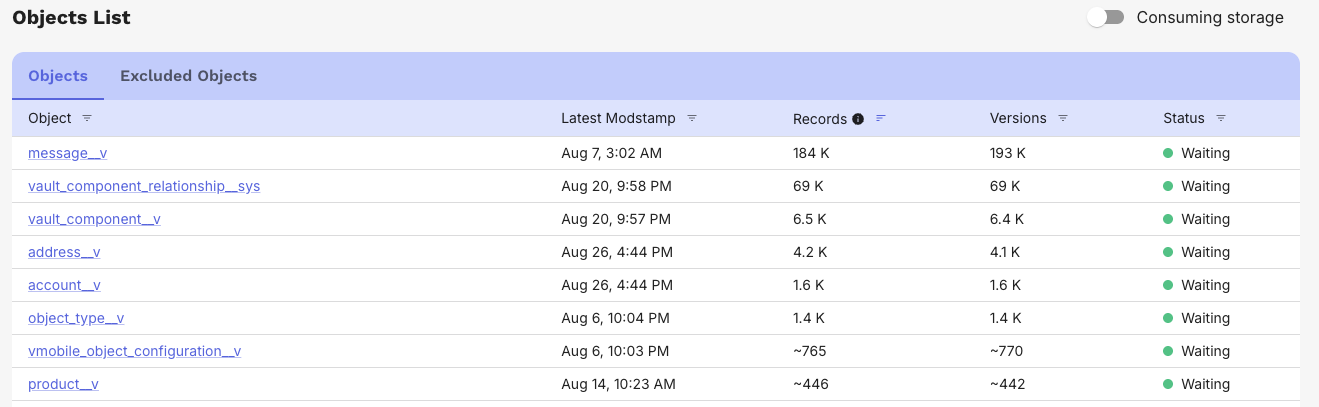
Backup Dashboard Objects List
The dashboard also contains a list of files and objects being backed up along with record count and version count. Objects can have the following statuses:
* `Waiting`: object is caught up and waiting for new data
* `Running`: object is nearly caught up and backing up new data
* `Backfilling`: object is still backing up initial data
* `Paused`: object isn't being processed because Backup has been turned off
* `Unavailable`: object isn't being processed because GRAX has lost access to the object in Veeva Vault CRM
{% hint style="info" %}
If the system encounters errors, Backup will display an Error status both for the entire process and the specific object affected. Additionally, a banner will appear on the dashboard with a link to the error summary page, where you can download a CSV containing detailed stack traces, if needed.
{% endhint %}
---
# Agent Instructions
This documentation is published with GitBook. GitBook is the documentation platform designed so that both humans and AI agents can read, navigate, and reason over technical content effectively. Learn more at gitbook.com.
## Querying This Documentation
If you need additional information that is not directly available in this page, you can query the documentation dynamically by asking a question.
Perform an HTTP GET request on the current page URL with the `ask` query parameter, and the optional `goal` query parameter:
```
GET https://documentation.grax.com/other/veeva/backup.md?ask=&goal=
```
`ask` is the immediate question: it should be specific, self-contained, and written in natural language.
`goal` is optional and describes the broader end goal you are ultimately trying to accomplish on behalf of the user. GitBook uses it to tailor the answer towards what is most useful for that goal.
The response will contain a direct answer to the question and relevant excerpts and sources from the documentation.
Use this mechanism when the answer is not explicitly present in the current page, you need clarification or additional context, or you want to retrieve related documentation sections.